
How it works
Four steps from a fresh install to a scene in your engine. The agent does most of the work in the third one.
Watch an agent build a downtown
-
Install Cuberta
Download the installer or the portable build for Windows, or the disk image for your Mac. It is free and you don’t need an account.
Download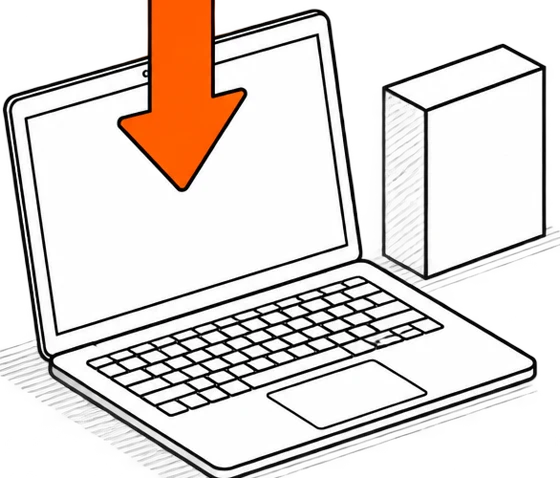
-
Connect your agent
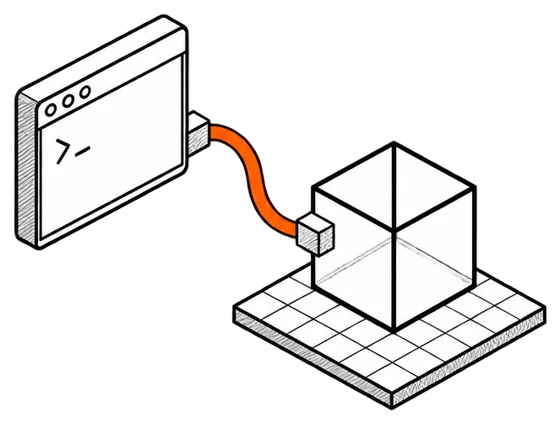
Open Cuberta and press Copy connect command in the top right corner. Paste the command into the terminal where your agent runs. Most people use Claude Code; any MCP client works.
-
Describe the place
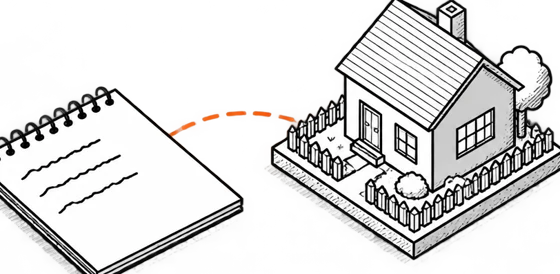
Write it the way you would brief a level designer: what the place is, what is in it and the time of day. The agent builds it in the viewport while you watch, and you can stop it, correct it or move things yourself.
For example A small town with a ring road, cottages, street lamps and sunset light.
-
Export to your engine
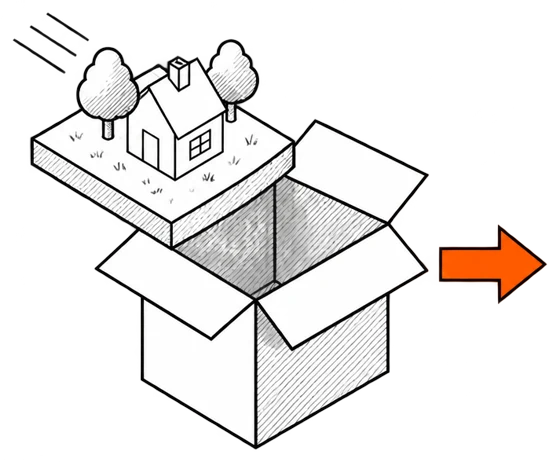
Export GLB or FBX with textures and open the scene in your engine.
Opening the export in your engine
-

Unity
FBX imports as it is. For GLB, add the glTFast package first.
Unity guide -

Unreal Engine
FBX imports as it is. GLB goes through the built-in glTF importer.
Unreal guide -

Godot
GLB is the format Godot prefers. Drop the file into the project.
Godot guide -

Blender
File → Import → glTF 2.0 or FBX.
GLB or FBX?
Download Cuberta
Free for Windows and macOS. No account needed.